
I had the pleasure of sharing with you all the steps it takes to set up and run your own essential internet services with the help of YunoHost.
Fun fact - and sorry I'm addressing this point only now but the right way to pronounce "YunoHost" is Why-You-No-Host (Y-U-NO-Host). In the first couple of months of using the service I routinely mispronounced it YoU-No-Host... I only learned of the correct pronunciation when I heard a member of the YunoHost team say the project's name... and apparently many folks in the Fediverse also mispronounced it. So I thought I would use this post to spotlight the right name to call it.
Anyway, let’s rewind to see all the information I covered so far:
In part one, I explained why I’m passionate about self-hosting and I discussed what you need to get started on this journey (a VPS and a domain name). If you need a referral code for a VPS plan on Hostinger, here it is (link) - which gives you an extra 20% off.
 Elena Rossini
In part two, I shared a step-by-step tutorial about how to install and set up YunoHost on your server:
 Elena Rossini
In part three, I showed you how to install and set up your first app – I used NextCloud as an example (a free, open source collaboration platform that has replaced Google Docs, Dropbox and WeTransfer for me):
 Elena Rossini
And now the most requested article so far: backups!
⚠️ Trigger warning: this post may upset sysadmins
I have been on this wonderful self-hosting journey for a little over a year. Sure, I am more confident and knowledgeable now than I was in 2024 about this stuff, but I remain a newbie in many ways. My strategy for backing up my YunoHost instance is very much a testament to that.
I would like to apologize to sysadmins in advance if what I write sounds a little sacrilegious to you. To be honest, I was terrified to write this self-hosting series for newbies. I feared I would receive an avalanche of complaints from devs and sysadmins, chiding me for giving terrible advice. I’m really surprised - shocked, really - that I didn’t receive a single complaint so far, even if my posts proved to be really popular. “So far” is the operative word here because my post about backups is sure to upset sysadmins. Continue reading at your peril!
With great power comes great responsibility
You signed up for a VPS, installed and configured YunoHost and set up your first app? Congratulations, you’re a sysadmin now.
The freedom and power to host your own essential internet services and social media come with something else: the responsibility to maintain and backup your precious system and data.
Here’s how I - still very much a newbie - do it.
My backup rituals
The standard advice for good backup practices is the 3-2-1 method: have 3 copies of your data, using 2 types of media storage, keeping at least one copy offsite.
I personally do things a little differently: my method is more like 4-2-2: I have 4 copies of my data, on two types of media storage, with two copies at home (on a huge desktop external disk and a small portable one), one at my parents’ in Italy and one at my in-laws’ an hour away from my place in Paris. I don’t really have to give much thought to what or how to transfer things because I use the software Carbon Copy Cloner, which automates backups for me at home as soon as hard drives are mounted (and if hard drives haven’t been mounted for over 5 days, I get a notification about it).
For my YunoHost system though, I do things differently: I execute manual backups weekly (which I then copy in 2 places) and I also have my VPS doing automated daily backups, for which I pay 2.99€ a month. Here is how my system works.
My weekly YunoHost manual backup
Every Monday morning, I have a little ritual: at the start of my working week, I grab a cup of coffee, log onto my YunoHost dashboard and execute a full backup. Here's how to do it:
- log onto your YunoHost dashboard
- click on "Administration" in the lower menu
- re-enter your admin username and password
- click on "Backup" (the last item in the list)
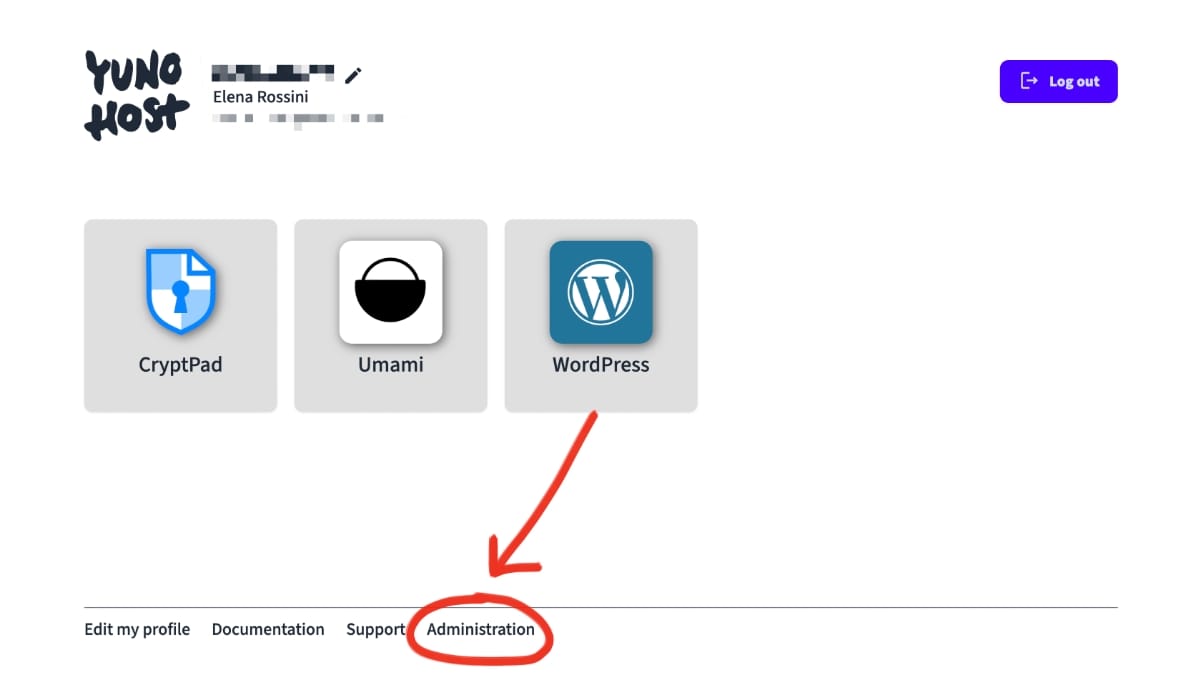
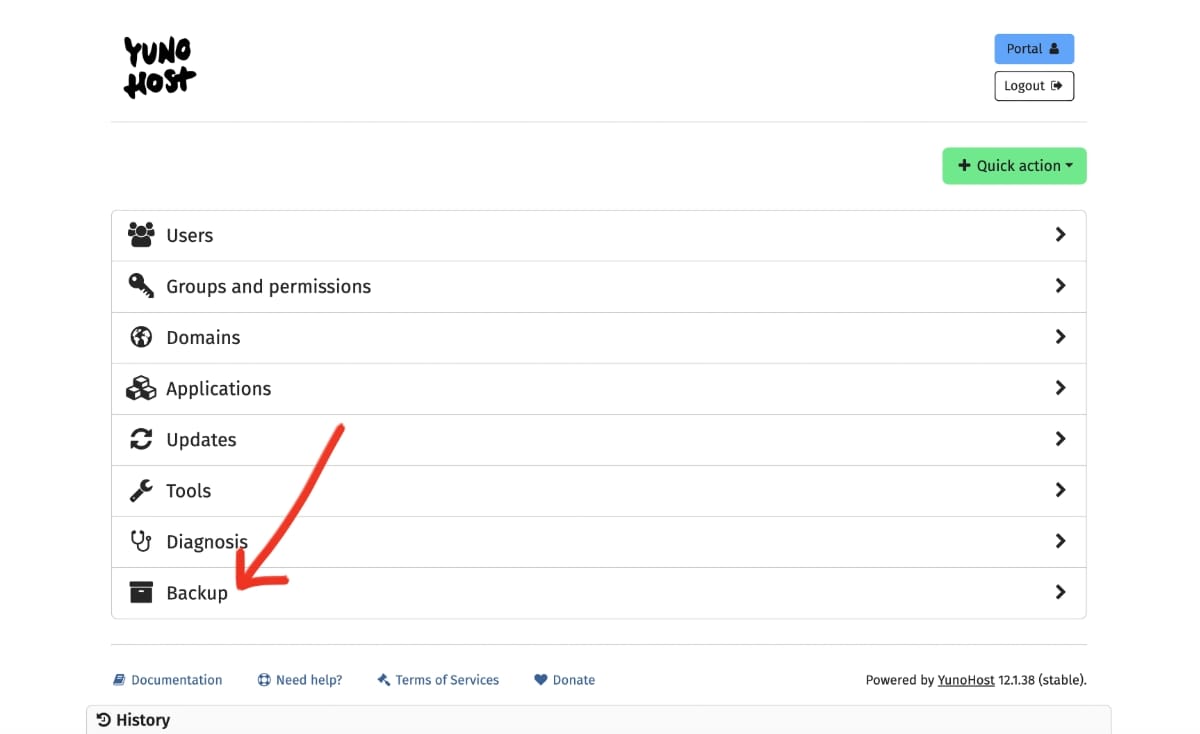
screenshots showing the welcome screen for my instance (featuring the apps I have) and then the YunoHost dashboard menu (Users, Groups, Domains, Applications, Updates, Tools, Diagnosis and Backup)
You will then see a screen that says "Local Archives" - click on it.
Then click on the green button on the top right side of the screen that reads "+ New Backup."
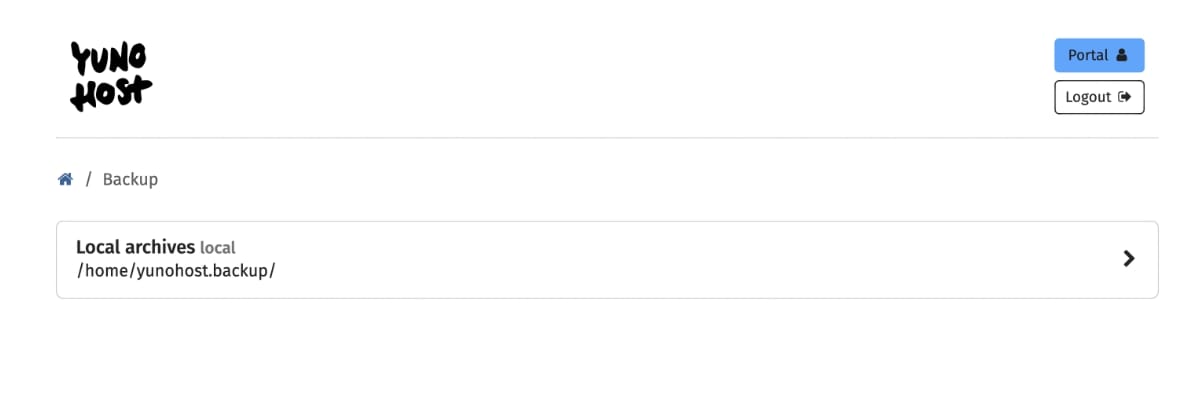
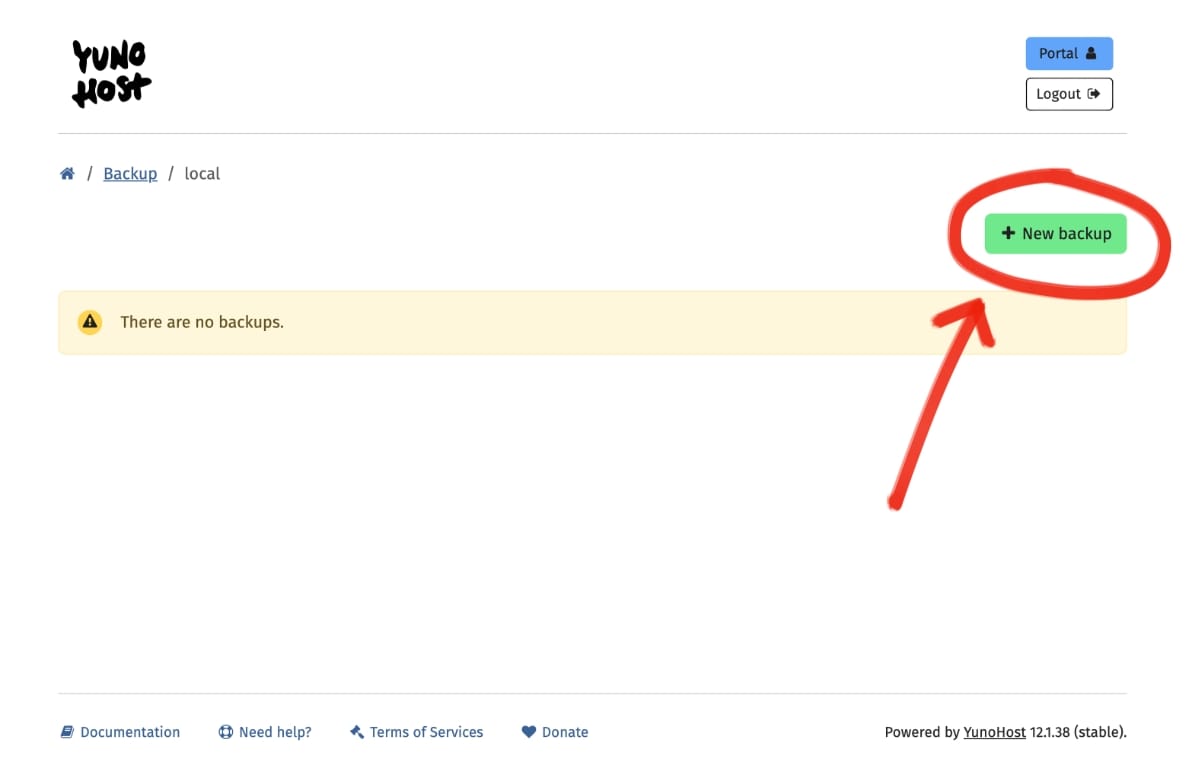
Left: a screenshot showing the "welcome screen" of the backups page with Local Archives. Right: a screenshot that reads "You have no backups" with a red, hand-drawn arrow that points to the button "new backup"
Side note: I had to delete all my backups to simulate what the screen would look like for a new user and let me tell you... I was delighted to create a new backup right away (sigh of relief).
When you click on "New Backup" you will be presented with a long list of things hosted on your server that you can choose to include or exclude from your backup. I typically back up my ENTIRE instance, leaving every box checked.
Just scroll all the way down the page until you see a big green button that says "Backup" and click on it.
YunoHost will take care of the rest, launching and running the backup process.
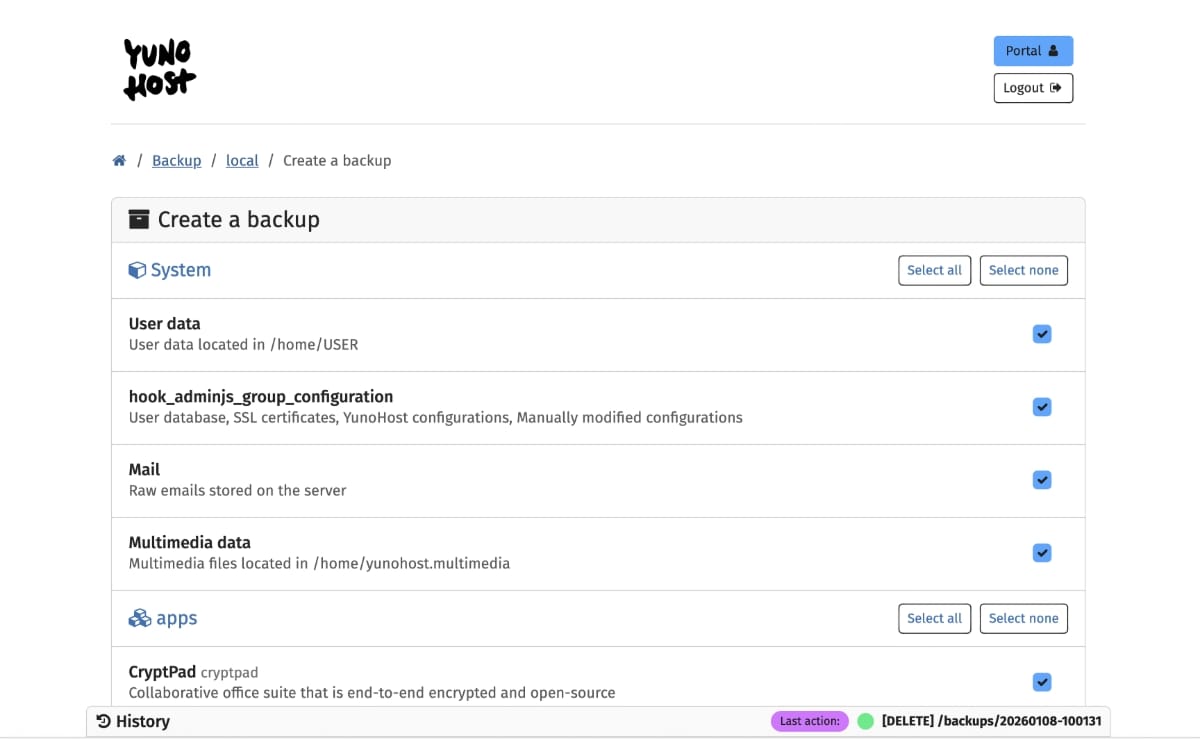
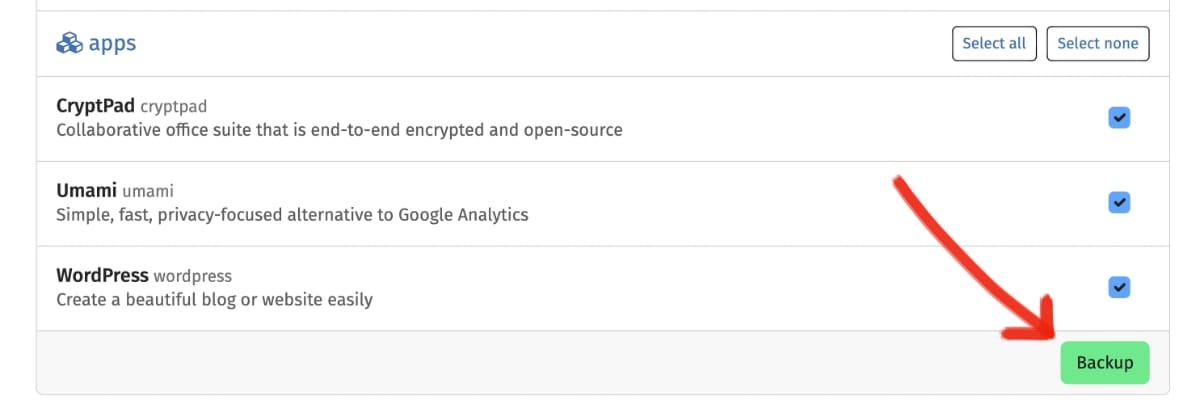
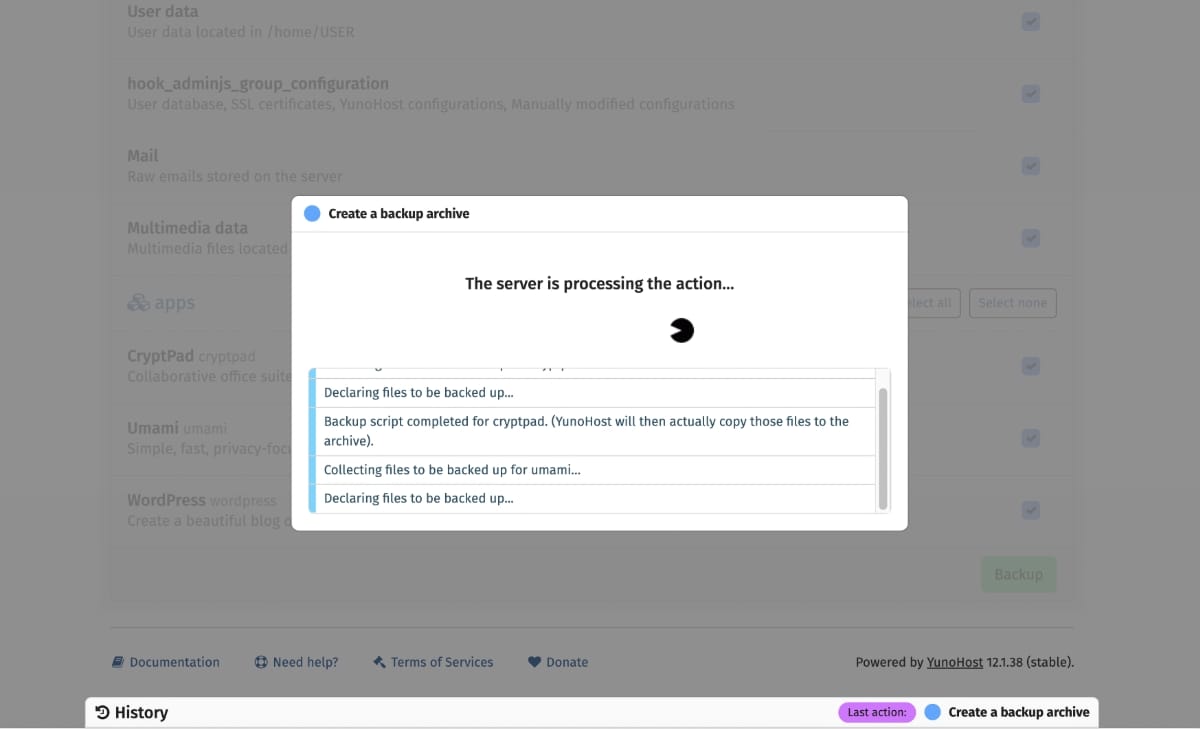
3 screenshots. The first shows the top of the "New Backup" page listing all the items that can be backed up. The second screenshot shows the bottom of the page with the green "backup" button... and the third screenshot shows the backup process in action.
The Backup page of your YunoHost server should now look like this:
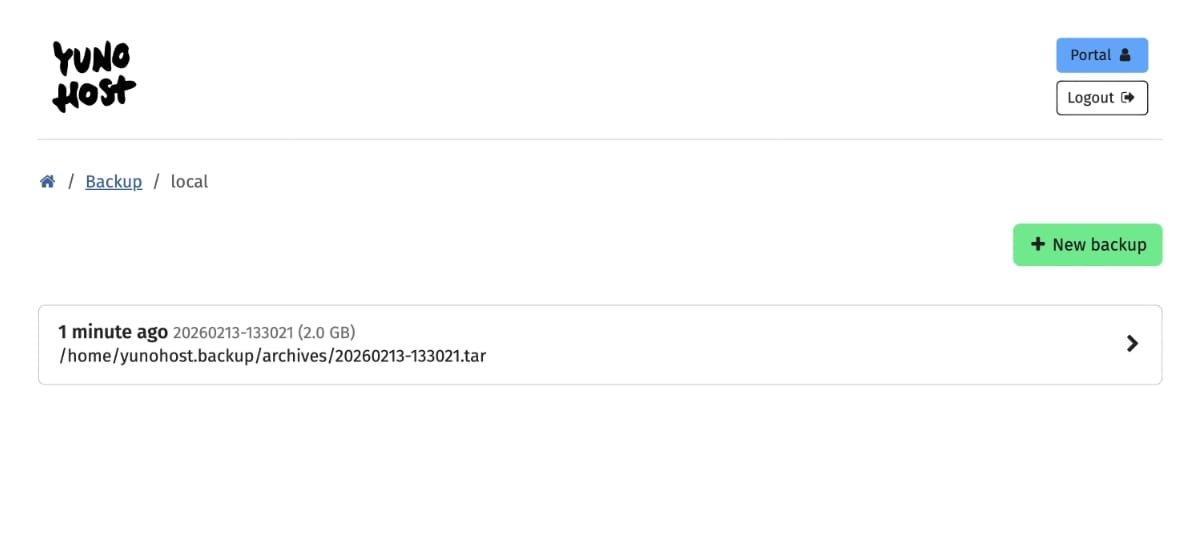
Click on it.
In the following page you will see all the files that the backup includes. And crucially, at the top of the page, you will see a green "download" button. Click on it to save the backup to your hard drive.
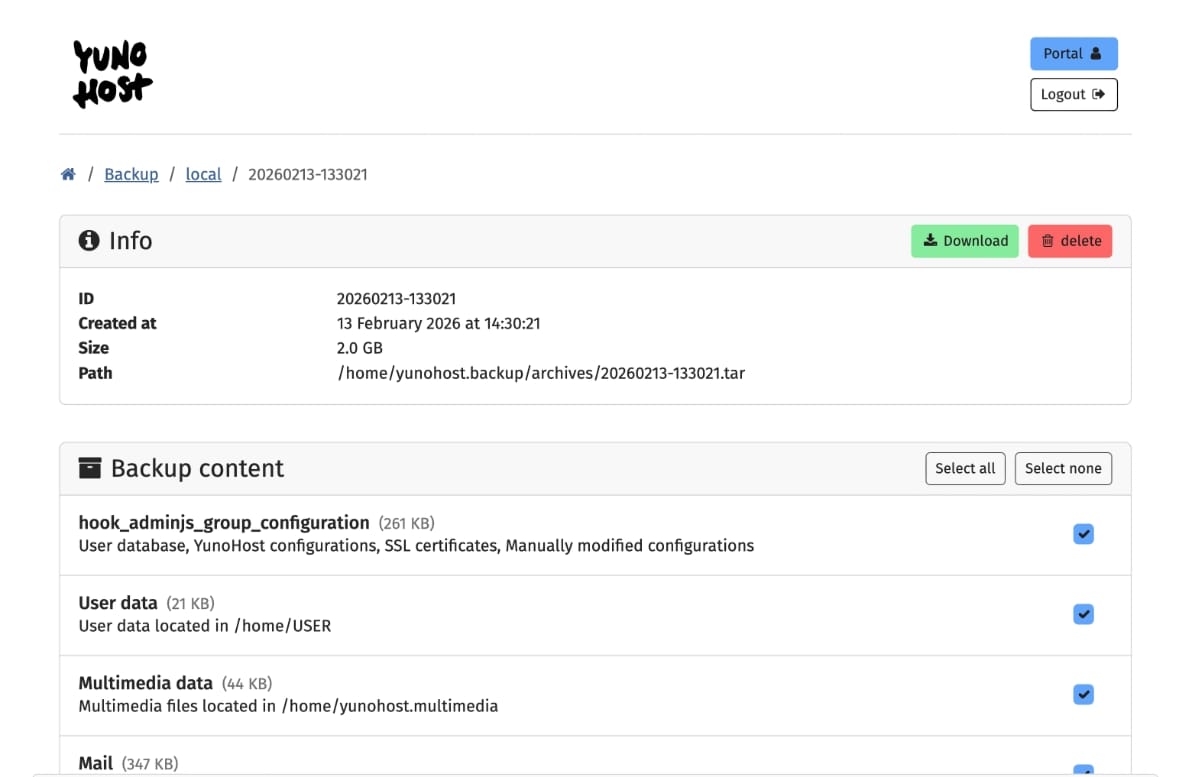
After I do this, I typically copy the backup file to:
1) my main external hard drive...
2) ... which gets automatically synched to a second portable drive (that I use to sync data with my drives in two off-sites).
This way, depending on my travels, I may have up to 4 backups of my YunoHost instance, in one or two offsites.
I typically delete old backups every week, once I've done a fresh backup, so that my VPS storage maintains lots of free space.
Weekly vs. Daily Automated VPS Backups
In the spirit of: better be safe than sorry, I also pay my VPS provider - Hostinger - for full daily backups of my entire VPS* running my most important apps (let's call it VPS1 for simplicity's sake).
In order to show you what it's like to install a brand new YunoHost system on a VPS I signed up for a second plan - let's call it VPS2. I am using it for my experimentations, knowing full well that if something goes wrong, it's not that big of a deal to wipe the entire VPS and start over.
Now, VPS2 - the one I use for this blog series and experimentations - does NOT have premium daily backups. The plan for it includes free weekly backups - where you can choose the day of the week when the backup takes place.
Here is what VPS2's backup dashboard looks like:
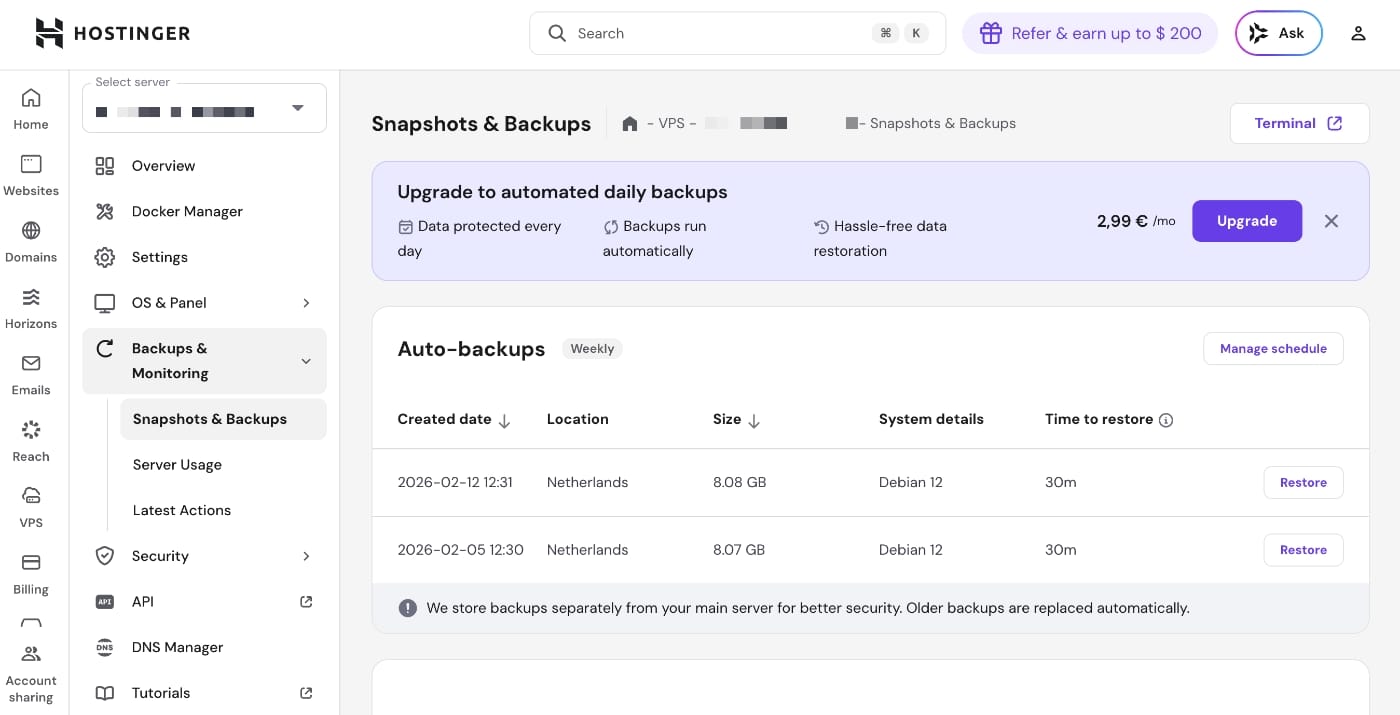
As you can see, backups are created automatically on a weekly schedule separately from my main server for better security. There are two recent backups that can be restored... with older backups being replaced automatically.
I think this is fine if you're not running any truly essential services. Plus, you could always create a "snapshot" of your VPS at any given time. I used to have a reminder in my calendar to take a snapshot on a Thursday because new backups got generated for me on Mondays, so at least I would always have something recent.
If you're just getting started with self-hosting I think this approach is absolutely fine.
That said, the more serious you get, the more critical backups become.
Meet my VPS1, which is hosting my PeerTube, GoToSocial, NextCloud and a couple of other apps (picture me experiencing cold sweats while I type this). Because this VPS is absolutely essential to me, I am paying 2,99 Euros a month for daily automated backups. You may be thinking: ouf, this self-hosting business sounds expensive. Yes, it's a privilege. But also: 2,99 Euros a month is an amount less expensive than a latte and it gives me peace of mind. If I were to manually run and verify backups every month with another method, it would sure take me quite a bit of time - and worry. I think €2,99 a month for peace of mind is a steal.
Here is what the backup dashboard for my VPS1 looks like:
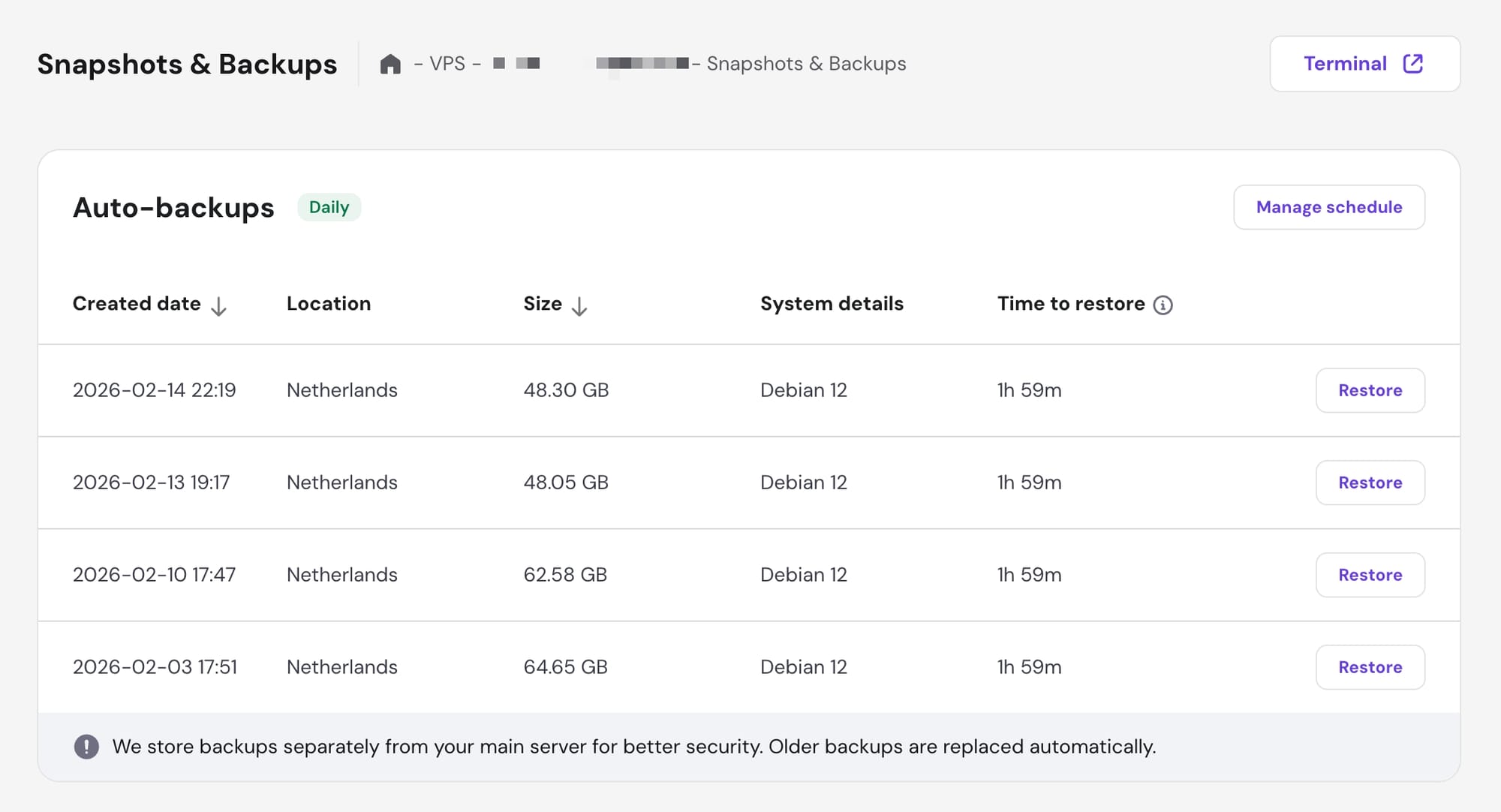
As you will notice, there are 4 backup files I can restore from: two recent ones and two more, going back 2 weeks (if you're wondering about the discrepancy in backup sizes, it's because I recently deleted some old backups from my YunoHost dashboard, thus freeing up some space).
How Sysadmins Do It
When I got started on my YunoHost self-hosting journey I received A LOT of advice from devs and sysadmins on the Fediverse, encouraging me to set up incremental backups with Borg Backup. And while I theoretically understand how it is a great strategy, it's beyond my area of comfort and expertise. Here is a tutorial/testimonial from someone far more knowledgeable than me, recounting his experiences:
 Stefan Zweifel
Yes it makes sense.
Yes it's sounds like a brilliant solution.
But no, sorry, it's a little too advanced for a newbie like me. I'd rather pay €2,99 a month to take all the planning and worrying off my plate.
I think that the day I figure out how to setup and configure Borg for my system is the day I can stop referring to myself as a "newbie."
Until then, I'm happy to continue doing things this way.
Thanks for being here,
Elena
P.S.: the next article in this series will cover "maintenance." Let me know in the comments if you have any questions or special requests for new articles.

💓 Did you enjoy this post? Share it with a friend!
👫 Follow me on Mastodon. All my other links are available here: elena.social
📽️ If you'd like to support my work, you could buy or rent my documentary The Illusionists on the globalization of beauty:

The Illusionists
THE ILLUSIONISTS is an award-winning documentary about the globalization of beauty and the dark side of advertising.
💌 If you'd like to say hi, my contact information is here
✏️ If this post resonated with you, leave a comment!